


Factory Reset vs Secure Erase How to Wipe a Windows PC Safely

A Windows factory reset can make a laptop look clean, but “looks clean” is not the same as “the old data is gone for good”. That difference matters if the PC is being sold, passed to a family member, donated, recycled, or returned to an employer.
A reset removes personal files from the Windows installation, deletes local accounts, removes installed applications, and puts the system back into a fresh setup state. For many everyday problems, that is useful. It can clear clutter, fix software issues, and prepare the device for a new user.
The catch is simple: a factory reset does not always guarantee complete data deletion. Depending on the reset option used, the type of drive inside the PC, and whether the data was encrypted, some traces may remain recoverable with the right tools.
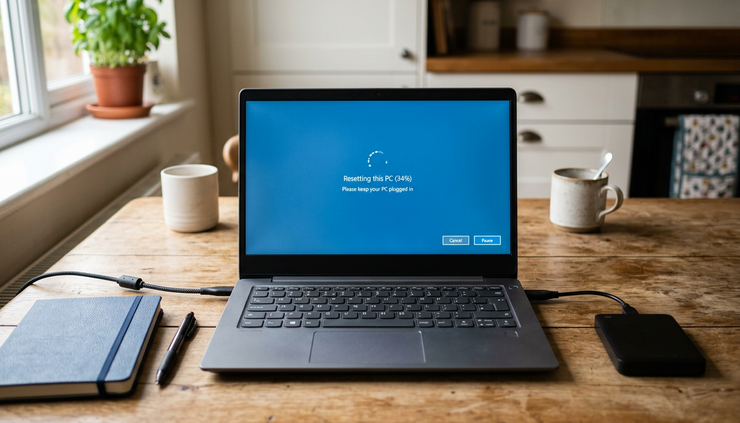
What a Windows factory reset actually does
In Windows 10 and Windows 11, the built-in reset feature usually gives two main paths:
Keep my files
This reinstalls Windows while trying to keep personal files. It removes most apps and settings.
Remove everything
This removes personal files, user accounts, apps, and settings from the Windows installation.
When preparing a PC for someone else, “Remove everything” is the relevant option. Windows may also ask whether to reinstall from the cloud or from the local recovery files. That affects where the fresh Windows installation comes from, not whether the old data has been securely destroyed.
On some systems, Windows also offers a Clean data option. This takes longer and is designed to make recovery harder than a quick reset. It is a better choice than a simple reset if the PC is leaving your possession.
Still, a reset is mainly a convenience feature. It is designed to return Windows to a usable state. It is not always the same as a verified data destruction process.
The common question is, does a factory reset delete everything? From the point of view of the next person turning on the laptop, it may appear to. Your profile is gone, your apps are gone, and Windows starts as if it is new. From a data recovery point of view, the answer can be more complicated.
The difference between factory reset and secure erase
The phrase factory reset vs secure erase comes down to purpose.
A factory reset prepares the operating system for reuse. A secure erase aims to make previous data unrecoverable.
Factory reset | Secure erase |
Reinstalls or refreshes Windows | Sanitises the storage device |
Removes user accounts and apps | Targets the actual data left on the drive |
May leave recoverable traces | Is designed to prevent practical recovery |
Useful for fixing Windows problems | Better for selling, recycling, donating, or disposing of devices |
Usually simple and built into Windows | May need encryption, drive tools, specialist software, or physical destruction |
Factory reset is about convenience. Secure erase is about risk reduction.
Think of a factory reset like moving out of a house and taking the furniture. A secure erase is closer to shredding the paperwork in the filing cabinet before handing over the keys.
That distinction matters because many personal files are more sensitive than they first seem. A home PC may contain:
Scans of passports, driving licences, or bank letters
Saved browser passwords or session data
Tax documents and payslips
Medical letters or insurance documents
Photos, videos, and private messages
Work files copied to the device
Old email archives
Downloaded statements and invoices
Cryptocurrency wallet files or recovery phrases
Even if those files were deleted months ago, some may still exist on the drive until overwritten or securely erased.
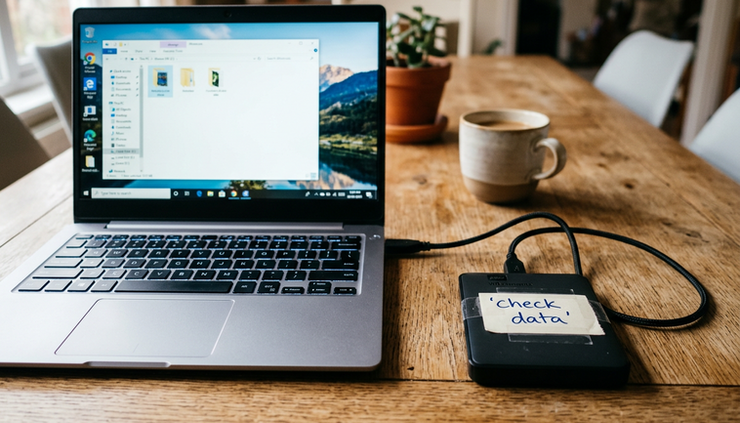
Why data can sometimes be recovered after a reset
When a file is deleted in the usual way, Windows often removes the reference to it rather than immediately wiping every part of the file from the drive. The space is marked as available, and over time it may be reused. Until then, data recovery software may be able to find fragments or even whole files.
A factory reset can work in different ways. Some reset paths remove files quickly. Others try to clean the drive more thoroughly. The result also depends on whether the device uses a hard drive, SATA SSD, or NVMe SSD.
Traditional hard drives can leave readable remnants
On an older mechanical hard drive, deleted files may remain in unused areas until they are overwritten. If a reset only removes file references and reinstalls Windows, recovery tools may still find recoverable data.
This is why a simple reset is not ideal before selling an older desktop or laptop with a hard drive.
SSDs behave differently from hard drives
Solid-state drives use features such as wear levelling and TRIM. These can make data recovery harder in some cases, because the SSD may clear deleted blocks in the background. But they also make old-fashioned overwrite methods less predictable, because the drive decides where data is physically stored.
For SSDs and NVMe drives, the best method is usually a proper SSD secure erase, manufacturer sanitise command, or encryption-based wipe rather than repeated overwriting.
Recovery depends on the setup
The chance of recovery after a factory reset depends on several things:
Which reset option was used
Whether “Clean data” was selected
Whether BitLocker or device encryption was already on
Whether the drive is an HDD, SSD, or NVMe SSD
How much new data has been written since the reset
Whether recovery is attempted with consumer tools or specialist lab equipment
For most casual buyers, a reset may be enough to stop ordinary browsing through old files. For sensitive information, that is a poor standard. The better question is not “Will the next person look?” but “Could the data be recovered if someone tried?”
When a factory reset may be enough
A factory reset may be reasonable when the device is staying within the household, contains no sensitive files, and the risk is low. For example, resetting an old laptop before giving it to a child for homework may be fine if the device never held banking documents, work files, or private records.
It can also be useful before troubleshooting, because it removes problematic software and gives Windows a clean start.
For anything else, use a stronger method. If a laptop is being sold online, donated to a charity shop, sent for recycling, or returned at the end of a contract, secure data erasure is the safer route.
That is especially true for shared family PCs. A person may forget that another user once saved medical letters, school records, legal documents, or business files on the same machine.
How to securely erase a Windows PC
There is no single perfect method for every PC. The right choice depends on the drive, the value of the device, and how sensitive the data is. The methods below move from everyday practical options to higher-assurance approaches.
Back up what you need first
Before wiping anything, copy important files to another location and check the backup opens correctly.
Good backup targets include:
An external hard drive
A new computer
A trusted cloud storage account
A NAS or home server
Do not rely on memory. Check common folders such as `Desktop`, `Documents`, `Downloads`, `Pictures`, `Videos`, and any folders created outside your user profile.
Also check apps that store data locally, such as accounting software, password managers, email clients, photo libraries, game saves, and specialist work tools.
Sign out and unlink the PC
Secure erasure deals with the storage drive, but accounts also matter.
Before wiping a Windows PC, sign out of services where possible:
Microsoft account
OneDrive
iCloud for Windows
Google Drive or Dropbox
Adobe, Microsoft 365, Steam, and other licensed apps
Password managers
Work or school accounts
If the laptop will be sold, remove it from your Microsoft account devices page when you are done. If BitLocker is enabled, save the recovery key only if you still need it. Once the PC is wiped and sold, the new owner should set up their own encryption and recovery keys.
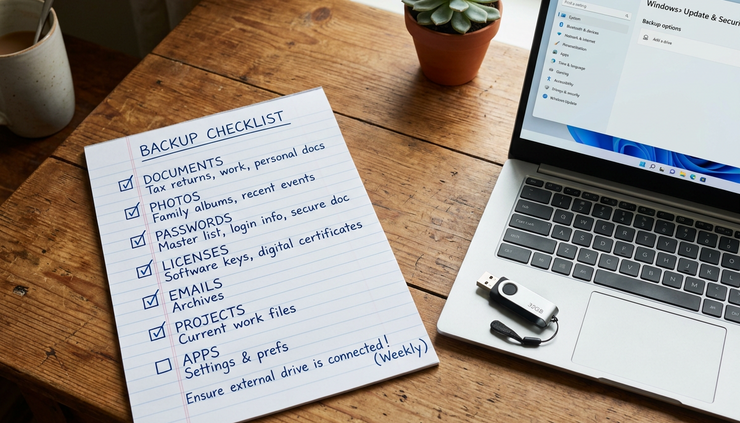
Use Windows Reset with the clean data option for lower-risk cases
For everyday users selling a low-risk personal laptop, Windows Reset with the cleaning option is often the simplest starting point.
In Windows 11, the route is usually:
Open `Settings`.
Go to `System`.
Select `Recovery`.
Choose `Reset this PC`.
Select `Remove everything`.
Choose `Local reinstall` or `Cloud download`.
Open the additional settings if shown.
Turn on the option to clean the drive or clean data.
Confirm and let the process finish.
In Windows 10, the wording can vary, but the path is usually under `Settings`, then `Update & Security`, then `Recovery`, then `Reset this PC`.
This option takes longer than a quick reset. That is expected. The extra time is part of the cleaning process.
For a PC that only held routine files and is going to a trusted person, this may be enough. For highly sensitive data, use stronger methods.
Encrypt first, then reset
Encryption can reduce the risk of data recovery because old files are stored in encrypted form. If the encryption key is removed or replaced, recovered fragments should be unreadable without the key.
Many modern Windows laptops support BitLocker or device encryption. Availability depends on the Windows edition and the hardware.
A practical approach is:
Turn on BitLocker or device encryption.
Let encryption fully complete.
Use `Remove everything`.
Choose the clean data option if available.
Reinstall or reset Windows for the next user.
This approach is useful for SSDs, where simple overwriting is not always the best answer. It is often called a crypto erase when the key is destroyed or made inaccessible.
Do not skip the step where encryption must finish. If the drive is only partly encrypted, older unencrypted data may still exist.
Use the drive maker’s secure erase or sanitise tool
Many SSD and NVMe drive makers provide tools that can issue a secure erase or sanitise command. These commands tell the drive controller to erase data internally.
This can be a better fit for solid-state storage than old-style overwrite tools. Search the drive maker’s support site for the correct utility and instructions for that exact model.
For built-in laptop storage, the secure erase option may also appear in the BIOS or UEFI settings. The name varies. It may be shown as:
Secure Erase
NVMe Sanitise
SSD Sanitise
Drive Erase
Storage Wipe
Use these options carefully. They can erase the drive very quickly and may not ask twice.
Use trusted bootable erasure software such as Destruct Pro
A bootable erasure USB can wipe a PC without relying on the installed copy of Windows. This is useful if Windows will not start, if the machine has several drives, or if a stronger audit trail is needed.
For hard drives, reputable data erasure software can overwrite the disk. For SSDs, look for support for SSD sanitisation rather than repeated overwrite passes.
Some tools and commercial services can produce a Certificate of Erasure. Businesses, charities, and public-sector organisations may need this kind of record. Some policies refer to standards such as NIST 800-88, which gives guidance on clearing, purging, and destroying data. Everyday home users do not usually need formal paperwork, but the principle is useful: choose a method that matches the sensitivity of the data.
Physically destroy drives that cannot be wiped
If a drive is dead, locked, or too faulty to erase, physical destruction may be the safest option. That can mean removing the drive and using a reputable recycling or destruction service.
For a hard drive, destruction needs to damage the platters. For an SSD or NVMe drive, it needs to destroy the memory chips. Snapping the plastic case or removing the drive from the laptop is not enough.
Take care with batteries and electronics. If in doubt, use a proper e-waste service rather than trying to break hardware at home.
What to do before selling, donating, or recycling a PC
A safe handover is more than pressing reset. Use this checklist before the device leaves your possession.
Back up important files and test the backup.
Sign out of cloud accounts and licensed apps.
Unlink the PC from Microsoft and other services.
Check whether the drive is an HDD, SSD, or NVMe SSD.
Turn on encryption if using an encryption-based wipe.
Choose a secure erase method that fits the risk.
Reinstall Windows if the next owner needs a working computer.
Remove stickers, labels, asset tags, or paperwork with personal details.
Keep proof of erasure if the data belonged to a business or organisation.
If the PC is going to be recycled, you do not always need to reinstall Windows. The priority is making sure the data is gone. If the PC is being sold, the new owner will expect a working setup screen.
Common mistakes that leave data behind
A few simple mistakes cause most problems.
Deleting files and emptying the Recycle Bin is not a secure wipe. It usually removes easy access to the files, not every trace of them.
Formatting a drive is not always enough either. A quick format mainly rebuilds file system structures. It does not necessarily overwrite all old data. A full format is stronger for hard drives, but it still may not be the right tool for SSDs.
Removing your Windows password does not protect anything. It may even make the device easier to browse.
Reinstalling Windows without wiping the drive can leave old partitions, recovery folders, or secondary drives untouched. Desktops often have more than one internal drive, so check them all.
OneDrive and other cloud tools add another wrinkle. Resetting the PC does not delete files from cloud storage. That is usually good, because it protects your backup. But it also means account access must be removed from the device before it goes to someone else.
The safest choice for most people
For a modern Windows laptop with an SSD and ordinary personal data, a sensible approach is:
Back up files.
Sign out and unlink accounts.
Make sure BitLocker or device encryption is on and complete.
Use a trusted tool like Destruct pro
Choose the option to Wipe data.
Reinstall Windows.
For a PC that held sensitive work files, financial records, identity documents, client data, or anything confidential, go further. Use a proper SSD sanitise tool, trusted bootable erasure software, or a professional erasure service that can provide evidence of the wipe, such as Destruct Pro
For a dead or unreliable drive, choose destruction through a responsible recycling route.
A factory reset is useful, but it is not a promise that every old file is gone forever. Secure erase focuses on the storage itself, which is what matters when a computer leaves your hands. Before selling, donating, or recycling a Windows PC, match the wipe method to the risk. If the device ever held sensitive information, treat secure data erasure as part of the handover, not an optional extra.


Comments